
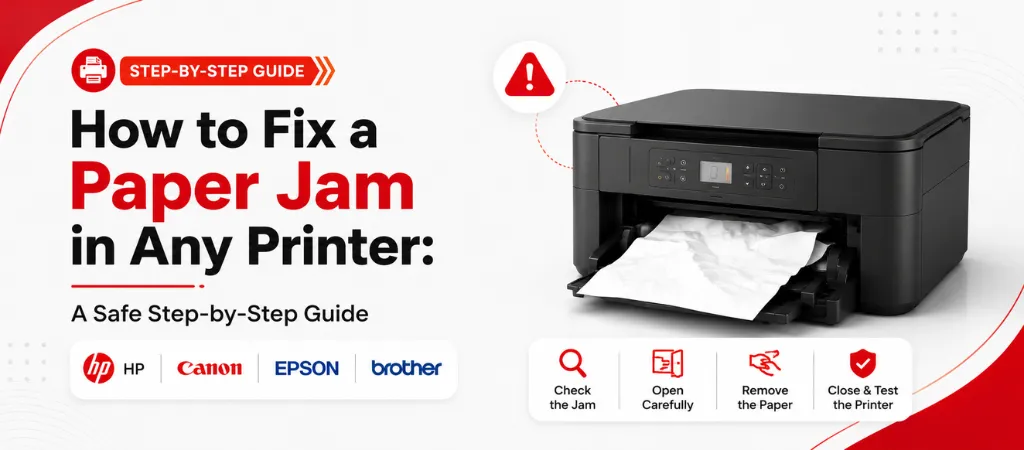
In the world of printing, there is no more prevalent printer problem than a paper jam — and none more likely to turn into a bigger, more severe problem if not handled properly. A 30 second fix will become a broken roller or repeat jam in 2 minutes in three cases: pulling paper too fast, pulling back the paper or leaving a torn piece of paper inside the machine.
Here are the instructions for resolving a paper jam in any printer safely, regardless of the make or model; any home or office ink jet, laser, or multifunction (MF) copier. It also tells you why jamming occurs in the first place (a very common paper feed problem related to worn feed rollers, humidity or particles) and how to prevent the same paper feed problem from reoccurring.
Before You Touch Anything: Two Safety Rules
Rule #1: Always turn the printer off and unplug before looking into it. Laser printers use a fuser which is on the order of 350°F and remains hot for a few minutes after the printer turns off. Inserting hot item in during use can cause burns to hand which can also damage the sleeve. While not as hot as laser models, inkjet printers still turn off to keep the print head from moving suddenly while you are holding your hand in it.
Rule #2: Have a flashlight. The most common reason for a second jam is because a piece of paper scrap is torn free by the jam and remains in the paper path, causing a second jam. These are not in view just by looking inside, so you must light a path down the entire paper trail and look in all of the areas that you can reach before closing the panels and running a test.
For more information also read : Signs Your Office Printer Needs Repair (And What to Do Next)
Step-by-Step: How to Fix a Paper Jam in Any Printer
- Switch off and unplug the printer. If a laser printer, wait 2 minutes or more before proceeding.
- Open access doors: front cover, rear access door, paper tray and duplexer (if your printer has one). Most of the models only provide full access to the paper path when all the panels are opened simultaneously.
- Using a flashlight, find the jammed paper. The printer may report an error code or direct you to a particular location on the printer (such as “Jam in rear door” or “Clear area B2”).
- Hold paper at leading edge (the part that is going into the printer, not the part that is coming out) and slowly pull in direction that it was going. Do not pull the paper backwards against the paper path as this will rip the paper and leave pieces around the paper path near the rollers.
- Do not continue to pull if the paper tears. Instead, use a flashlight and tweezers to pull out any bits that are left close to the feed slots or rollers from the exit side.
- Use a flashlight to examine all areas of access to look for paper feed roller debris, office-type staples, and paper tears.
- Shut all access panels completely. Place a new, fan open pile of paper in the tray.
- Insert and turn on the machine and print a test page to check if the jam is completely off.
Paper Jam Locations by Printer Type
Different printer designs jam in different places. Knowing where to look first saves time and helps prevent a repeat paper jam in any printer model you own.
| Printer Type | Most Common Jam Location | Where to Open First |
|---|---|---|
| HP OfficeJet / DeskJet (inkjet) | Near the cartridge carriage or rear exit | Rear access door, then front cover |
| HP LaserJet (laser) | Fuser area near output tray or duplexer | Rear door (let cool first), then front |
| Canon PIXMA (inkjet) | Feed roller area, front paper guide | Front cover, then lift paper output tray |
| Brother MFC (laser) | Drum unit area or fuser | Front cover to remove drum unit, then rear |
| Epson WorkForce / EcoTank | Rear feed slot or ADF (document feeder) | Rear paper guide, then ADF cover |
| Xerox / Ricoh copier | Registration rollers or finisher | Follow display code; open labeled zones |
The 3 Mistakes That Cause Damage When Fixing a Paper Jam in any printer
- Sucking the paper back. Pull in the direction in which the paper moves. The back tension pulls the sheet against the rollers and may tear the rollers out or pull out fuser in a laser printer.
- Not allowing the laser printer to cool down. It is recommended not to stick your hand in the fuser within 1 minute after turning it off or else you may get a burn or may press against it and cause the fuser to be distorted.
- Not performing the fragment check. It is a virtual certainty that the next jam will occur if everything is closed without verifying in search of a scrap of paper — even a postage stamp one. If you are keeping on trying to jam at the same point, it is your leftover fragments, not the ‘mechanical failure’.
Why Does My Printer Keep Jamming? (Real Root Causes)
One-off jams are usually caused by loading error or random misfeed. If the jams are recurring, 3 or more in a week, there is almost always a root cause that can be corrected; and may be a more serious problem with the printer’s maintenance.
- Worn paper feed rollers — Rubber rollers wear out over time and as they wear, they lose their grip and are unable to reliably feed one sheet at a time. Isopropyl alcohol is a temporary solution, so is replacing the rollers in the long term.
- Paper that is moist — Moisture can be absorbed by paper, which can cause the paper to stick together and jam the printer. Don’t remove paper from its wrapping until it’s loaded.
- Paper tray is overloaded or off-center — Each paper tray has a capacity limit (often indicated in the centre of the tray). If it is over-filled, multi-sheet feeds occur, if the paper guides are not snugly on the stack, they will sit loose.
- Wrong paper type or size — When a different weight is loaded (e.g. 24 lb. copy paper into a tray configured for 20 lb.) or different sizes are placed in the same tray, they can cause misfeeds at the rollers.
- Debris in the paper path – Dust, pieces of paper that have been ripped apart in previous jams, or pieces of the staple that have come loose can cause the front of the paper to jam.
When to Call a Technician Instead of Fixing It Yourself
The majority of paper jams are self-serviceable. Call in professional printer troubleshooting support when: The paper jam occurs again while printing the same job after clearing the jam and re-starting the printer (suggests a problem with the rollers or sensors), The printer displays an error code that persists after the jam is removed and printer is re-started, Physical damage to the paper path – such as bent roller or broken fuser sleeve – is noticed, The jam is in a sealed component and cannot be removed safely without tools.
If paper jamming remains a problem, please call us for remote paper jam diagnosis and replacement of paper jamming rollers for HP, Canon, Brother, Xerox, Epson and other brands of printers.
Frequently Asked Questions
It is typically a false jam — some piece of torn paper is too small to be detected, or it is a dirty sensor that is causing the error with no real jam. Open all access panels, use a flashlight to determine if any are open and clean them with a dry lint-free cloth.
If not managed properly. Do not tear paper or pull paper backward out of the printer, or push hot paper out of the printer; this could damage the paper feed mechanism or fuser sleeve. To avoid all this, follow a proper procedure which is as follows: off, cool, open all panels, pull in direction of travel.
Takes HP inkjet: open access door on back and pull paper toward direction of travel to inspect front. For HP LaserJet: open back door and wait for it to cool for at least 2 minutes before approaching it. HP will normally indicate the zone the jam is in on its display.
To show the paper path, open the front flap and lift up the paper output tray. It’s more apt to be at the front feed roller on the Canon PIXMA models. A support code will be given (1300, 1303 or 1304) that will tell you the section of the paper path to open.
Use a bond paper with a weight of 20 lb. (75 g/m²) or 24 lb. (90 g/m²) recommended by your printer manufacturer. Don’t store paper in moist places, it must be kept in the box or sealed when not in use. Avoid using sheets that are damaged, curled or wrinkled.
A typical and recurring jam problem is diagnosis remotely, and usually involves a charge of $40 – $80. On the other hand, if it is about replacing the rollers or physically removing some debris, the costs will vary from $75-$200 per model. Ovron provides its clients with estimates for the entire job before work begins.
Conclusion
The essential steps to paper jam repair on any HP, Canon, Epson, Brother or Xerox printer are: power off, allow printer to cool if it’s a laser printer, open all access panels, carefully pull the paper in the direction it was going and run a careful flashlight inspection for any torn pieces before closing things back up. If you miss any one of those steps, it could result in a broken roller, a rip in the fuser sleeve or a re-jamming within minutes.
If the jams are just once, then the steps above should have you printing again within 5 minutes. If the printer jams again (3 or more times per week), it’s not a paper problem anymore, it’s a sign of worn feed rollers, dirty sensor, or paper debris in the paper path, deep in the printer. Manual clearing will not solve the problem at that point, a diagnosis will.
Ovron provides a no-cost, before-the-work is-done sensor error or roller replacement troubleshooting service for all major printer brands for recurring jams, sensor errors or roller replacement. Call +1-833-837-4005 or visit ovroninc.com/printer-troubleshooting for a solution
Table of Contents


